Vision Simulation
If your agent lives on a web page, the conversation is only half the test. The customer also scrolls a product list, picks from a dropdown, fills in the form the agent asked for, and clicks the button under the agent's reply. Vision Simulation plays that customer in a real browser, turn by turn, and scores the whole flow.
okareo-vision is the Python package that runs the browser on your side. You describe the page in a small Python class; the package opens it in Chromium, makes the moves Okareo sends each turn, and answers with what the screen shows. Okareo plays the customer with a Driver you write and scores the conversation. The browser runs where your process runs, so the page can be on your own network.
The package is on PyPI. This page gets a first Run going; Vision Targets is the reference for every setting.
New to simulations? See the Simulation Overview.
What Vision Simulation Does
| What the customer does | What the simulated customer does | What you find out |
|---|---|---|
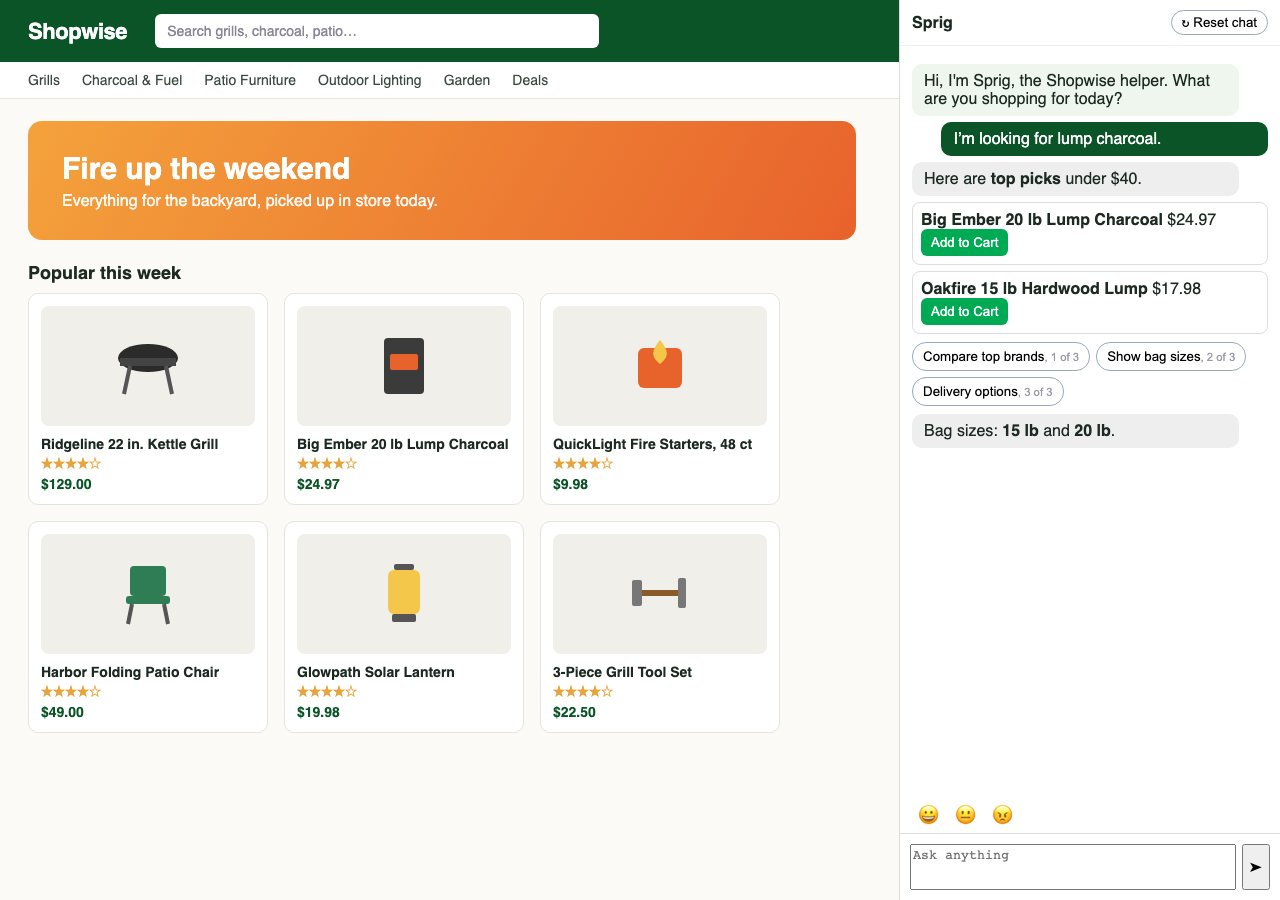
| Asks the chat for a product and adds it to the cart | Types the request, reads the reply, clicks Add to Cart on the item the chat suggested | The agent suggests something the customer can act on, and the cart shows it |
| Fills in a form the agent asked for | Types each field, including dates, phone numbers and codes that format themselves, and checks the field holds what it typed | The form takes what the agent told the customer to enter |
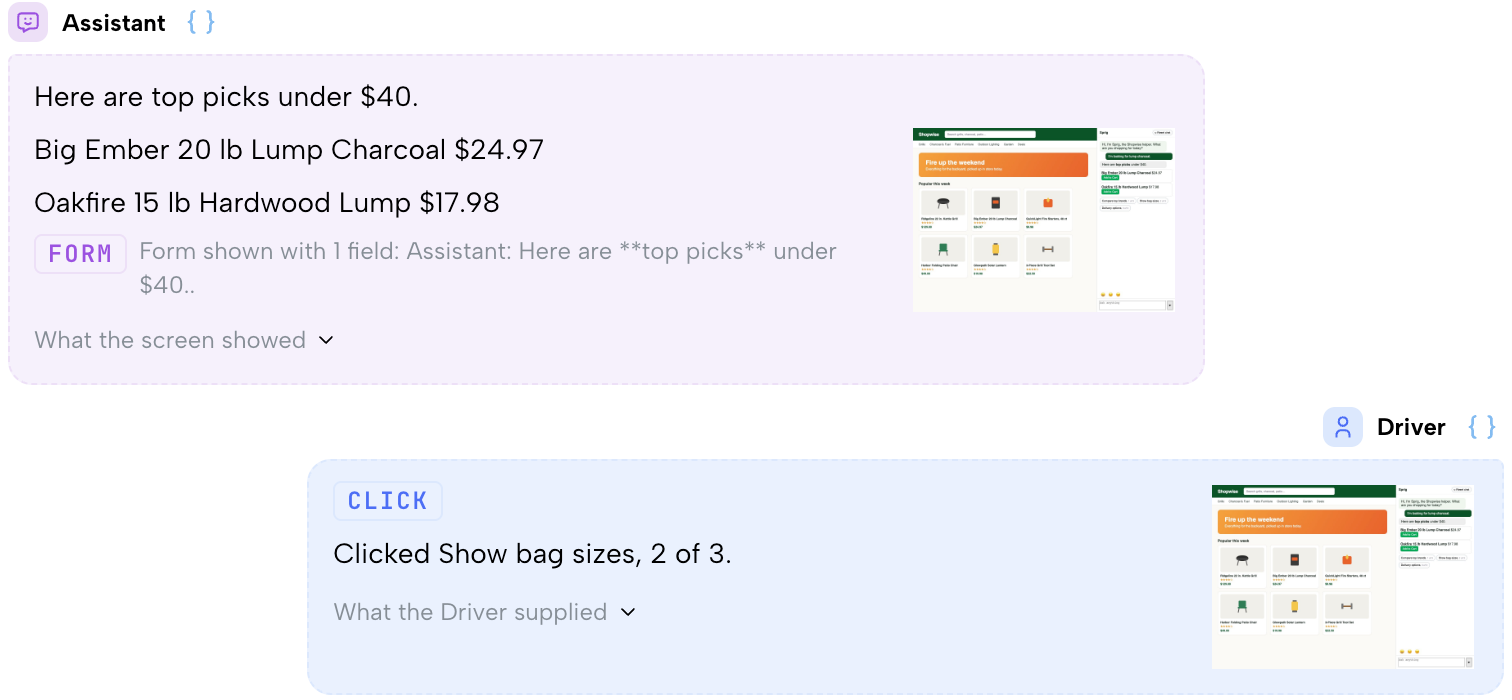
| Picks from buttons or suggestions under the agent's reply | Clicks the one that fits its goal | The suggestions lead where they say they do |
| Picks from a long dropdown | Scrolls the list until the option appears, then picks it | The option the agent named is there to pick |
| Waits on a page that never finishes loading | Sees the screen has not settled and decides what to do next | Where the page or the agent stalls |
How a Turn Works
Each turn, Okareo sends a batch of moves; okareo-vision makes them in order and sends back the screen: a screenshot, the page's visible text, and the controls on it. A move that fails says why, and the conversation goes on.
| Command | What it does |
|---|---|
click | Presses a control by its place on the screen, by its name, or as an entry from the control list. |
type | Types into the focused field, replacing what it held, and reads the value back. |
press | Presses one key: Enter, Tab, Escape, ArrowDown. |
scroll | Turns the mouse wheel over a place on the screen, or over the middle of the screen. |
compose | Puts a message in the chat's message box and sends it. |
wait | Waits for the screen to settle. |
Install
pip install okareo-vision
playwright install chromium
Python 3.10 to 3.12. The package installs the Okareo SDK (okareo) and Playwright. playwright install chromium downloads the browser once; on Linux, playwright install --with-deps chromium also installs the libraries it needs. A Run needs an Okareo account and its API key.
Your First Vision Simulation
You write three things: the page, the Driver, and the Scenario rows.
The Page
A VisionTarget names the page every conversation opens and gets the page ready before Okareo's first look. Here, one click opens the chat. Vision Targets covers every setting.
from okareo_vision import VisionTarget, click_selector

store = VisionTarget(
    url="https://shop.example.com/",
    prepare=click_selector("#ask-button"),
)
The Driver
A Driver is a prompt you write and register with the Okareo SDK: who the customer is, what they want, how they behave, and when they are done. Okareo adds what every Driver in a web Run needs to read a screen and make moves, so your text is about the customer only. {scenario_input.KEY} is filled from the row's input. Save it as driver.md:
## Scenario Details

What you want: {scenario_input.task}
Budget: {scenario_input.budget}
Notes: {scenario_input.notes}

## Objectives

1. Open by telling the helper what you are shopping for, in one short sentence in your own words.
2. Answer the helper's questions from the facts above, and pick from what it shows you.
3. Stop once the helper has answered everything your request asks for. A question from the helper is something to answer, not the end.
Configuring LLMs to role-play as a user can be challenging. See Creating Drivers.
The Scenario
Each line of scenarios.jsonl is one conversation: an input with the facts the Driver uses, and a result saying what a finished conversation looks like.
{"input": {"task": "Find out which bag sizes the lump charcoal comes in.", "budget": "under $40", "notes": "Ask for lump charcoal first, then press the bag sizes suggestion under the helper's reply."}, "result": "The helper suggests lump charcoal under $40 and says which bag sizes it comes in."}
Run It
import json, os
from okareo import Okareo
from okareo.model_under_test import Driver, Target
from okareo_api_client.models import ScenarioSetCreate

okareo = Okareo(api_key=os.environ["OKAREO_API_KEY"], base_path="https://api.okareo.com")
rows = [json.loads(line) for line in open("scenarios.jsonl") if line.strip()]
scenario = okareo.create_scenario_set(ScenarioSetCreate(
    name="Store shopper", seed_data=Okareo.seed_data_from_list(rows)))
driver = Driver(name="Store shopper", prompt_template=open("driver.md").read(), temperature=0.0)

VisionTarget.preflight()
run = okareo.run_simulation(
    name="Store shopper",
    scenario=scenario,
    target=Target(name="Store shopper", target=store),
    driver=driver,
    checks=["result_completed"],
    max_turns=20,
    first_turn="driver",
)
print(run.app_link)
run_simulation serves the browser side from this process until the Run finishes. Running Simulations covers how many conversations a Run holds.
Reading the Results
run.app_link opens the Run in the Okareo app. Each conversation's transcript shows every move the simulated customer made, what it typed, clicked or scrolled, beside the screen that move produced. Above the transcript, a player steps through the conversation screen by screen, so when something goes wrong you see exactly what the customer saw. Checks such as result_completed score each conversation against its row's result.

Where to Go Next
- Vision Targets: every setting, the
preparestep that gets the page ready, and fixes for common problems. - Creating Drivers: writing the customer the simulation plays.
- Checks: scoring each conversation.